An SLA policy in CXdesk sets three deadlines on a ticket: one for the first reply, one for each follow-up reply and one for solving it. Once a policy is on a ticket, CXdesk counts down to each deadline, stops counting while the ticket is out of your hands, and keeps a record of whether your team made it in time.
SLA policies are part of the Pro plan.
The three targets
| Target | What it measures | Met when |
|---|---|---|
| First response time | How long the customer waits for your team's first reply | The first reply is sent |
| Next response time | How long the customer waits each time they write back | An agent replies to them |
| Time to solve | How long the ticket takes from start to finish | The ticket is marked Solved for the first time |
Each target can be set in minutes, hours or days. Most teams set up a policy per kind of customer, say a tight one for business accounts and a looser one for everyone else.
Setting up a policy
- Go to Settings → SLA and add a policy.
- Name it something your team will recognise on a ticket, such as "Business accounts".
- Set the three targets.
- Choose when the clock should pause (more on that below).
- Set the warning time, which is how long before a deadline the badge changes colour.
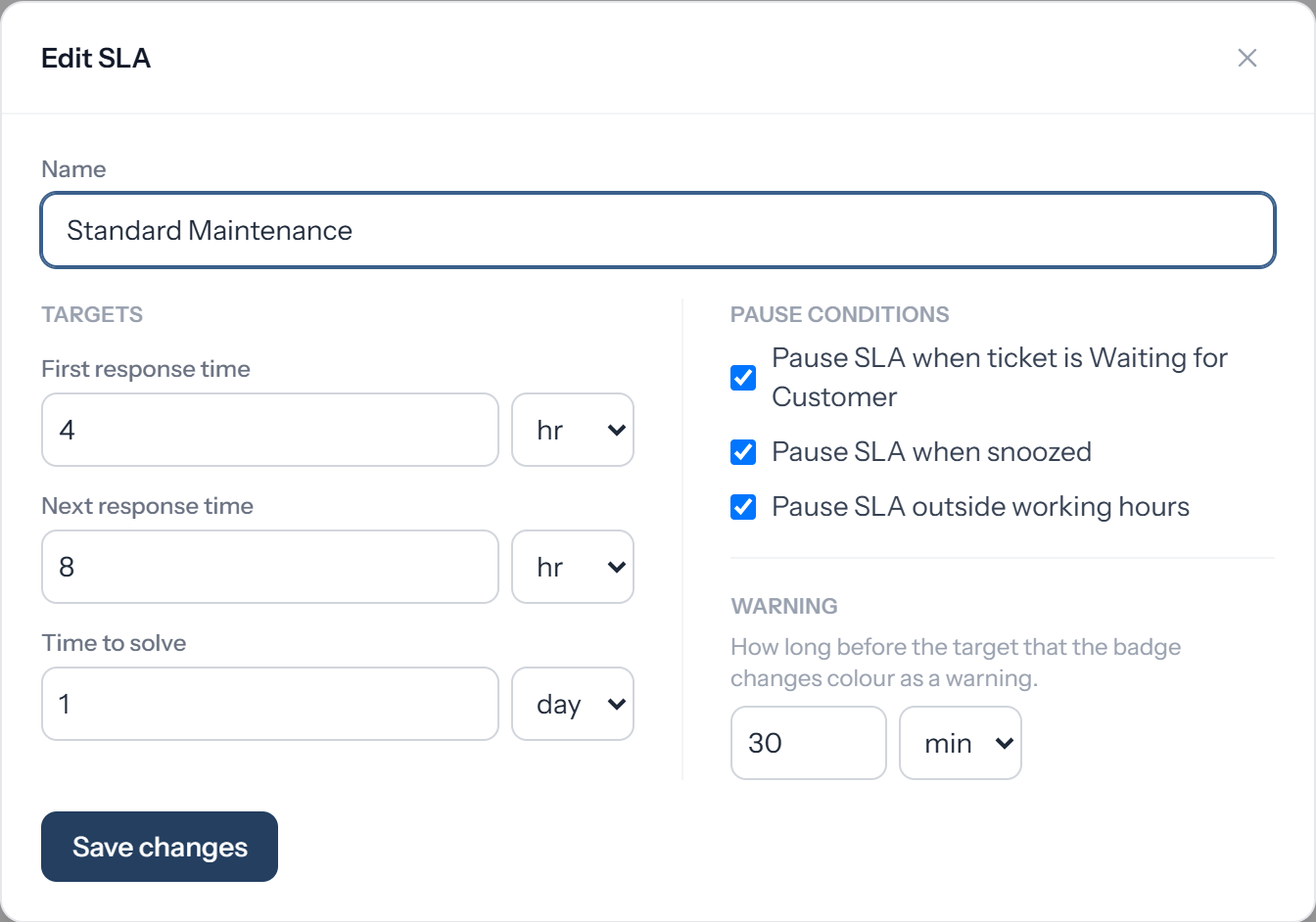
To use the policy, open a ticket and pick it in the SLA section of the details panel. You can only apply a policy to a ticket that is Open.
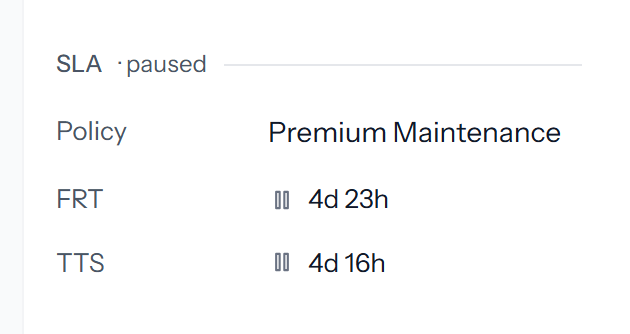
When the clock starts
The clock starts when someone applies the policy, not when the email arrived. If a ticket sits for an hour before anyone applies a policy, that hour doesn't count.
Switching a ticket to a different policy restarts the clock from that moment. Removing the policy removes the deadlines.
How next response time works
Next response time covers every reply after the first. The clock starts when the customer writes back and stops when an agent answers.
When a customer sends several messages before anyone answers, the clock runs from the first unanswered one. Writing three times in a row doesn't push your deadline back.
If someone solves the ticket while a next response clock is running, that clock stops and isn't counted as met or missed.
Pausing the clock
A policy can pause its clock in three situations:
- The ticket is Waiting for Customer. You've asked them something and the next move is theirs. When they reply, CXdesk moves the ticket to In Progress and the clock picks up where it stopped.
- The ticket is snoozed, meaning you've set it aside until a later time.
- It's outside working hours, so evenings and weekends don't count. You set working hours once for the whole workspace under Settings → Working hours: the working days, start and end times, and timezone.
Paused time is added to the deadline, so your team still gets the full time it was promised.
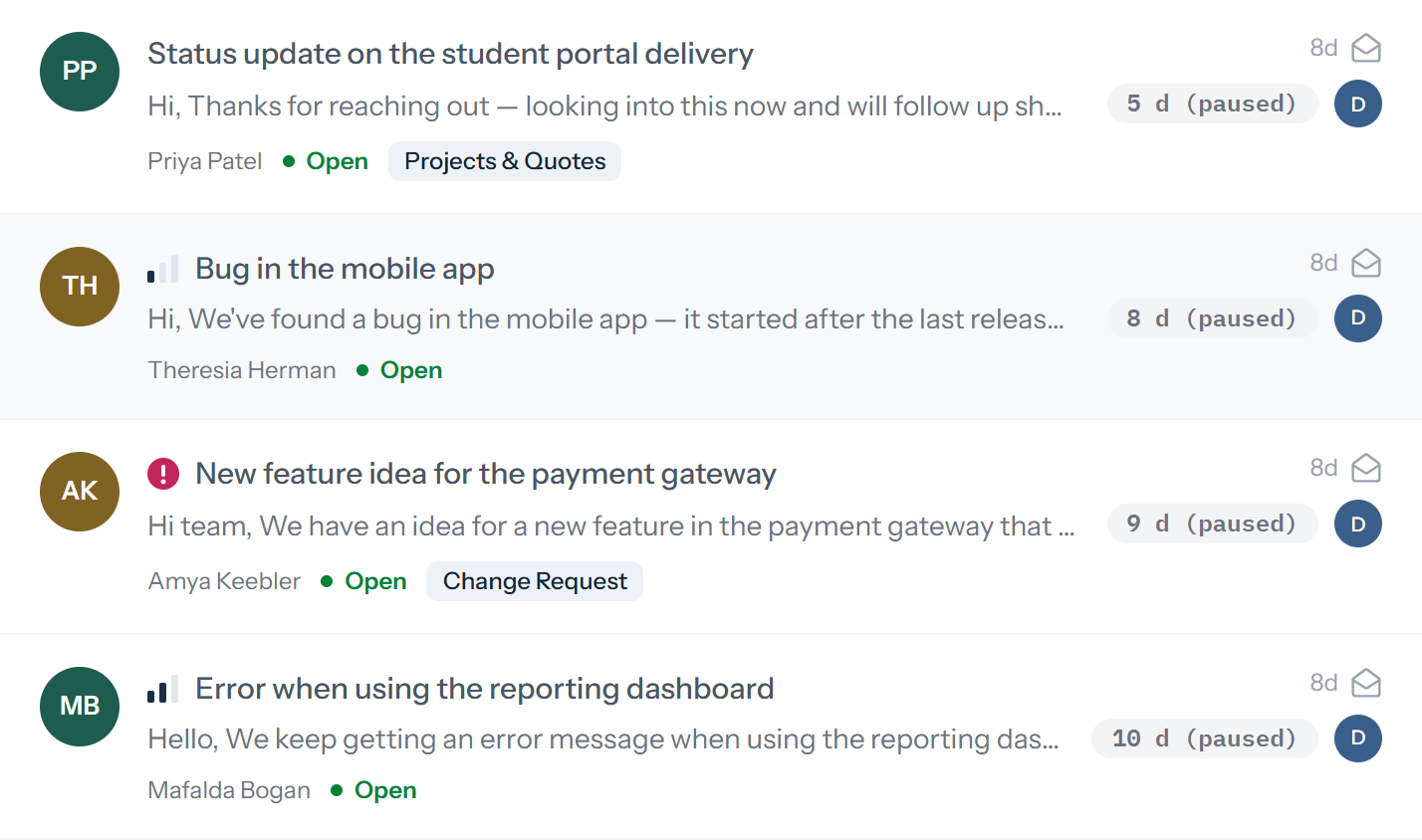
At the weekend, a policy that pauses outside working hours stops counting, and every badge in the list says so.
An example
Say a policy gives 1 hour for the first response and 8 hours to solve, and it pauses while the ticket is Waiting for Customer.
- 9:00. An agent applies the policy. First response is due at 10:00 and time to solve at 17:00.
- 9:40. The agent replies asking for an order number and sets the ticket to Waiting for Customer. First response is met with 20 minutes to spare, and the clock pauses.
- 13:40. The customer sends the order number. The ticket moves to In Progress and the clock starts again.
The ticket spent 4 hours paused, so time to solve is now due at 21:00 instead of 17:00.
Reading the SLA badge
Each ticket in the list has a badge showing the time left until its next deadline. That's the first response until the first reply goes out, and time to solve after that.
| Badge | Meaning |
|---|---|
| Blue-grey | On track |
| Light pink | Inside the warning time set on the policy |
| Solid pink | Overdue |
| Grey, marked "paused" | The clock is paused |
Hovering over the badge shows the policy name, which target it's counting down to and the exact due time. For the full picture, the SLA section of the details panel lists all three targets, and for each one already met, how much time was left or how late it was.
Seeing what's due first
Sort the ticket list by Next SLA and the nearest deadline goes to the top. To see every ticket that has missed its deadline, build a view with the filter Next SLA due is overdue.
Reporting on SLAs
When a target is met, CXdesk saves how much time was left or how late it was. Editing the policy later doesn't change that record, so past results stay accurate.
The reports show the share of all SLA targets met, then break it down into first replies on time, follow-ups on time and tickets solved on time. They also count missed targets. Tickets without an SLA policy aren't included in any of these figures.
Common questions
Does reopening a ticket restart time to solve?
No. Time to solve is measured the first time a ticket is solved, and reopening it later doesn't change the result.
What happens if I reply before applying an SLA?
The first response has already gone out, so there's no first response deadline to measure. Next response and time to solve still apply.
Can an SLA be applied automatically?
Not yet. An agent picks the policy on each ticket.
Do customers see the deadline?
No, SLA deadlines are only shown to your team.
Which plan includes SLA policies?
The Pro plan. You can try them in the live demo without signing up.
Deadlines are one way to keep tickets from slipping. The other is knowing who's already on a ticket: see how CXdesk shows when a teammate is already replying.