CXdesk has keyboard shortcuts for the things you do all day: finding a ticket, moving to the next one, replying, writing an internal note, assigning a ticket to yourself and marking it solved. Once your hands know them, you can work through a queue without reaching for the mouse.
They're on every CXdesk plan and there's nothing to turn on.
See every shortcut with ?
Press ? anywhere in CXdesk to open the shortcut sheet. It lists every shortcut, grouped by where it works. Press ? again, or Esc, to close it.
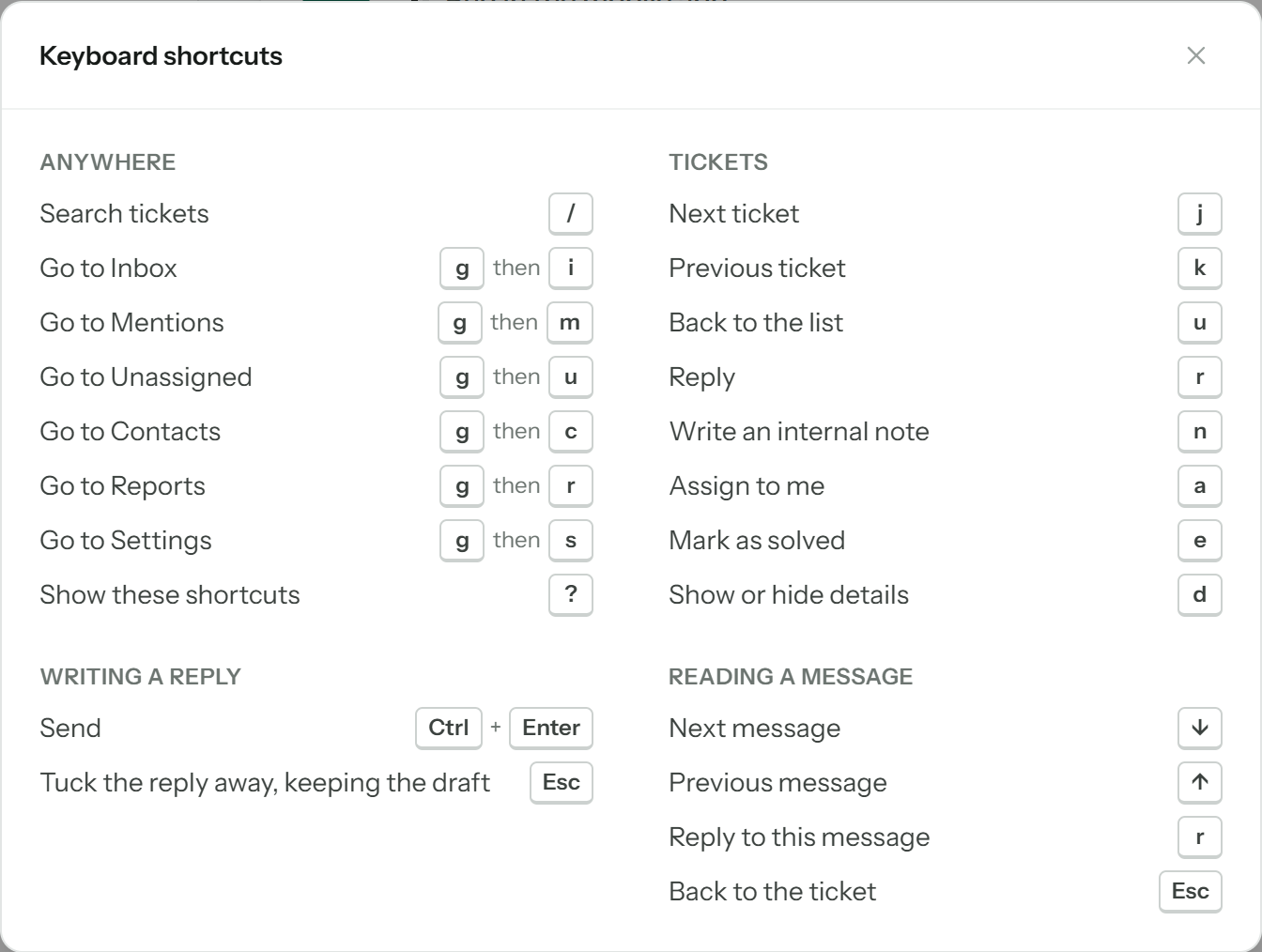
On a Mac, the sheet shows ⌘ wherever other computers use Ctrl.
Shortcuts that work anywhere
| Keys | What it does |
|---|---|
| / | Jumps to the ticket list and puts your cursor in the search box. |
| g then i | Goes to your Inbox. |
| g then m | Goes to Mentions, the tickets where a teammate @mentioned you. |
| g then u | Goes to Unassigned tickets. |
| g then c | Goes to Contacts. |
| g then r | Goes to Reports. |
| g then s | Goes to Settings, if your role can manage settings. |
| ? | Shows or hides the shortcut sheet. |
The "go to" shortcuts are two keys in a row: press g, let go, then press the second key within about a second and a half. If you wait longer, CXdesk forgets the g and nothing happens.
Moving between tickets
| Keys | What it does |
|---|---|
| j or ↓ | Opens the next ticket in the list. |
| k or ↑ | Opens the previous ticket. |
| u | Goes back from a ticket to the list. |
These follow the list you're looking at, in its current sort order and filters. From the list itself, j opens the first ticket. At the end of the list, j stays on the last ticket.
Working on a ticket
With a ticket open:
| Keys | What it does |
|---|---|
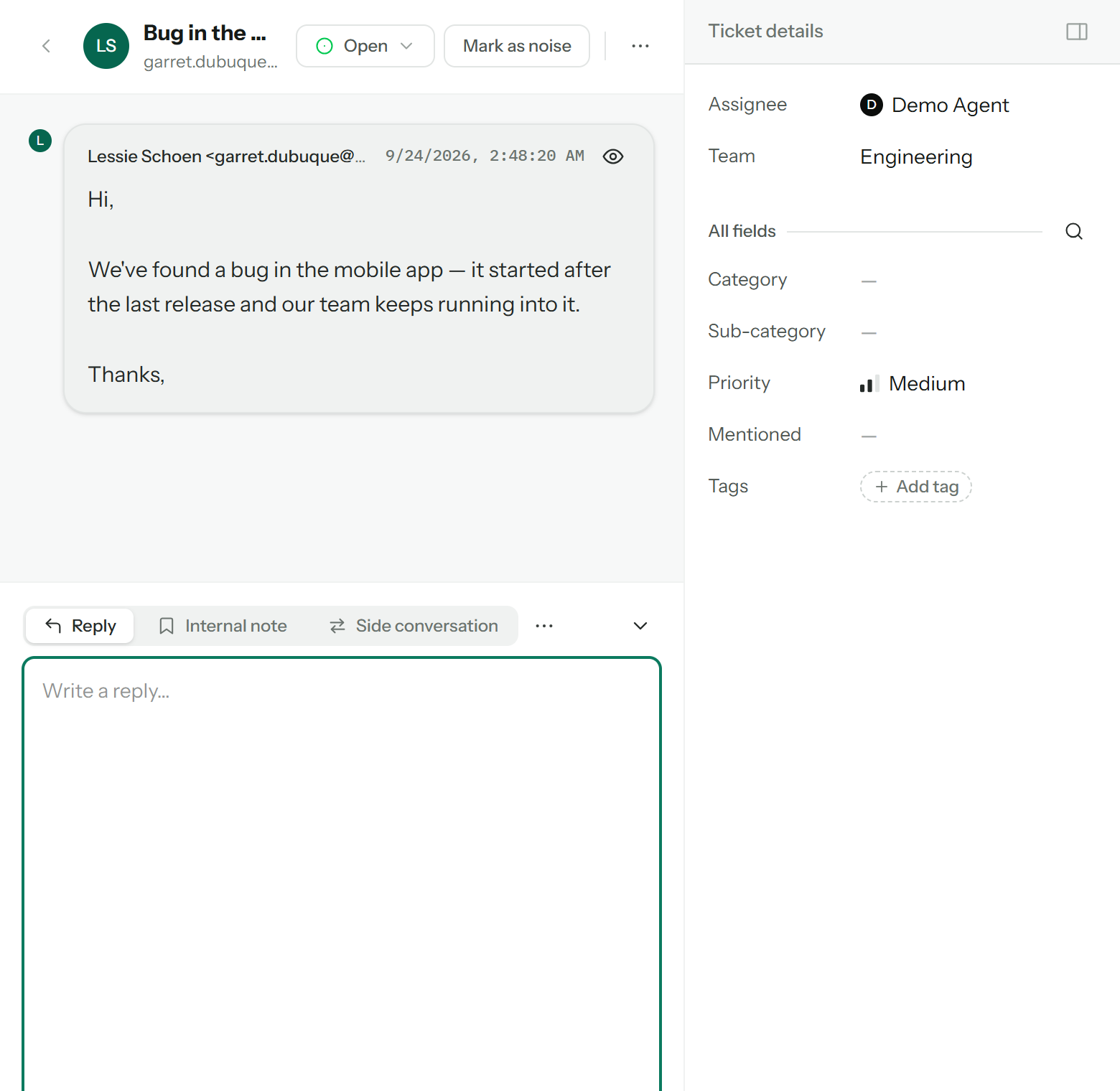
| r | Opens the reply box so you can start typing. |
| n | Opens the box for an internal note, which only your team can see. |
| a | Assigns the ticket to you. A message confirms it. If it's already yours, nothing changes. |
| e | Marks the ticket as solved. |
| d | Shows or hides the ticket details panel on the right. |
Writing a reply
| Keys | What it does |
|---|---|
| Ctrl + Enter (⌘ + Enter on a Mac) | Sends your reply. |
| Esc | Tucks the reply box away. Your draft is kept, so you can pick it up again with r. |
Reading a message
When you open a message to read it on its own:
| Keys | What it does |
|---|---|
| ↓ | Shows the next message in the ticket. |
| ↑ | Shows the previous message. |
| r | Replies to the message you're reading. |
| Esc | Goes back to the ticket. |
When shortcuts don't fire
Shortcuts only work when you aren't typing. While your cursor is in a text box, such as the reply box, the search box or a note, letters go into the text as usual. Click outside the box, or press Esc in the reply box, and the shortcuts work again.
They also stay out of the way when you hold Ctrl, ⌘ or Alt, so your browser's own shortcuts, like copy and paste, keep working.